Update (February 25, 2026): The scroll indicator API described in this post was reverted in Compose Foundation 1.11.0-alpha06. According to the changelog, the revert was because of API Council feedback, so we’ll likely get a new version of the API before long. In the meantime, this article still applies to Foundation 1.11.0-alpha01 through alpha05, and the concepts might carry over when the replacement lands.
Jetpack Compose Foundation 1.11-alpha-01 introduced a long-awaited feature: the ability to add custom scroll indicators to scrollable containers. If you’ve been following Compose development, you’ve probably noticed that scrollbars were conspicuously absent — unlike Android Views, which have had them built-in for years. This has been a frequently asked question on Stack Overflow and discussed in the Android developer community, and it’s been on the Compose roadmap since at least September 2024 (though the roadmap may have changed by the time you’re reading this).
Why scroll indicators matter
Scrollbars have been around for decades and are an effective, interactive UI control. As Blake Watson points out, scrollbars provide immediate visual feedback that’s hard to replicate:
- They indicate scrollability — Users can instantly see that content extends beyond the visible area
- They show content length — The scrollbar’s size relative to the track gives a sense of how much content exists
- They show current position — Users know exactly where they are in the document
- They show visible range — The thumb size indicates how much of the total content is currently visible
Without scroll indicators, users in Compose apps have been left guessing about scrollable content, especially in long lists or documents. The new APIs finally give us the tools to address this.
Background: The missing scrollbar
Compose has always lacked built-in scroll indicators. While you could build custom solutions using drawWithContent and LazyListState.layoutInfo (as many developers have done), there was no official, supported API. This gap became more noticeable as Compose matured and developers expected feature parity with Views.
Interestingly, the foundation for scroll indicators was laid quietly in version 1.10.0-alpha04, when ScrollIndicatorState was added to both LazyListState (Android review) and ScrollState (Android review). This state object provides the necessary information — scroll offset, content size, viewport size — to render a scroll indicator, but the actual rendering API didn’t arrive until 1.11-alpha-01.
The new APIs: An overview
Foundation 1.11-alpha-01 introduces the rendering APIs for scroll indicators:
Modifier.scrollIndicator— A modifier you apply to scrollable containers to add a scroll indicatorScrollIndicatorFactory— An interface that defines how the indicator looks and behaves
These work together with ScrollIndicatorState to provide the necessary information — scroll offset, content size, viewport size — needed to render a scroll indicator.
The design is clean and follows Compose patterns: you provide a factory that creates the indicator composable, and the modifier handles the rest. The factory receives the ScrollIndicatorState, which contains all the information needed to render the indicator at the correct position and size.
Basic setup: Getting started
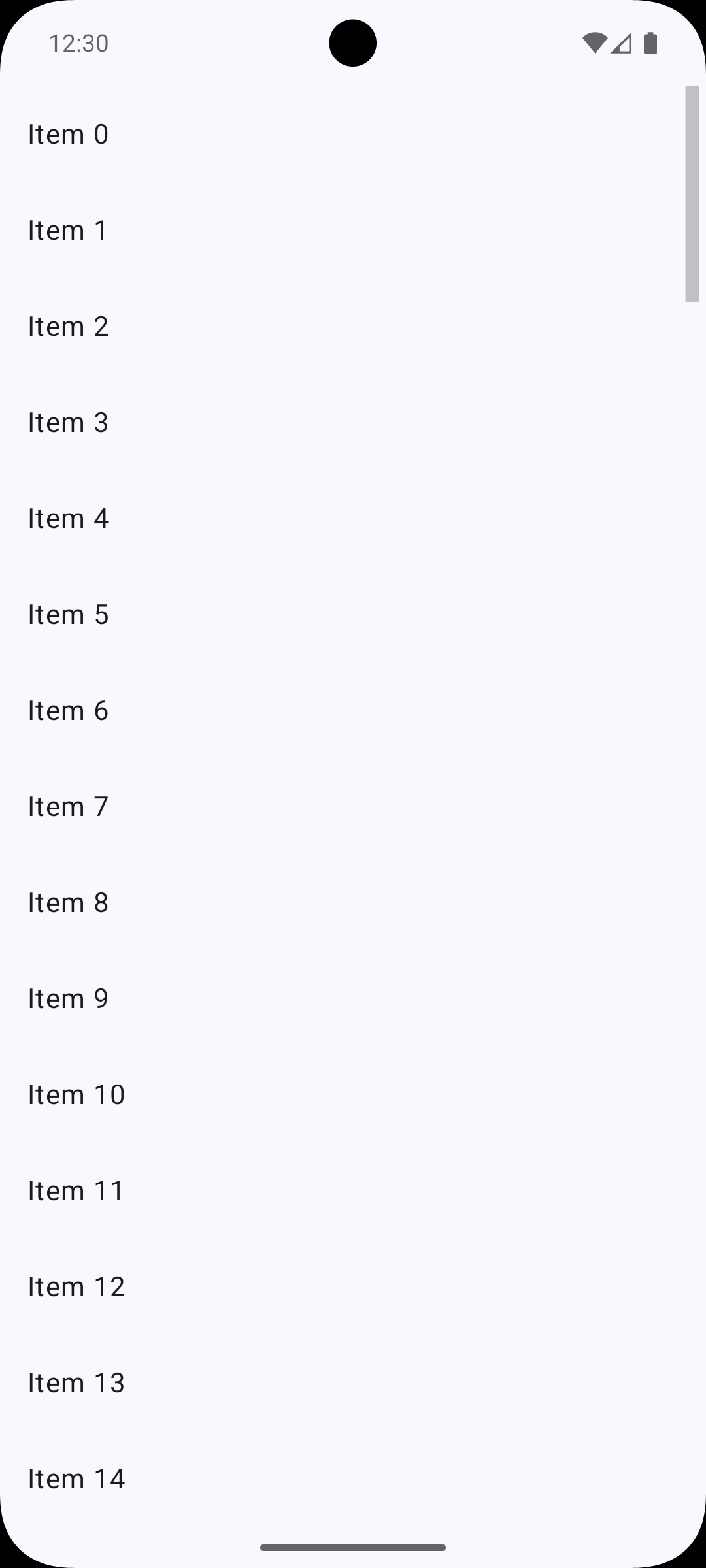
Adding a scroll indicator is surprisingly straightforward. Here’s a minimal example:
1 2 3 4 5 6 7 8 9 10 11 12 13 14 15 16 17 18 19 20 21 22 23 24 25 | |
That’s it! Since scrollIndicatorState is nullable, we use ?.let to conditionally create the scroll indicator modifier, then apply it with .then(). The default factory (when no factory is specified) provides a simple, functional scrollbar. The same pattern works for regular scrollable containers like Column or Row — just use rememberScrollState() instead of rememberLazyListState().
Customizing for Material 3 look
The default scroll indicator is functional but basic. If you want something that matches Material 3’s scrollbar design (like what you’d see in Views), you’ll need to create a custom ScrollIndicatorFactory. Here’s an implementation that approximates the Material 3 scrollbar, matching the constants from Android’s ViewConfiguration:
1 2 3 4 5 6 7 8 9 10 11 12 13 14 15 16 17 18 19 20 21 22 23 24 25 26 27 28 29 30 31 32 33 34 35 36 37 38 39 40 41 42 43 44 45 46 47 48 49 50 51 52 53 54 55 56 57 58 59 60 61 62 63 64 65 66 67 68 69 70 71 72 73 74 75 76 77 78 79 80 81 82 83 84 85 86 87 88 89 90 91 92 93 94 95 96 97 | |
Then use it like this:
1 2 3 4 5 6 7 8 9 10 11 12 13 14 15 16 17 18 19 20 21 22 23 24 25 26 27 28 29 30 31 | |
This implementation includes several Material 3 design characteristics:
- Fade in/out animation — The scrollbar fades in immediately when scrolling starts (150ms) and fades out 300ms after scrolling stops, with a 250ms fade duration (matching
SCROLL_BAR_FADE_DURATIONandSCROLL_BAR_DEFAULT_DELAYfromViewConfiguration) - Thin thumb — 4dp thickness by default, matching
ViewConfiguration.SCROLL_BAR_SIZE - Rounded corners — Half the thumb thickness for a pill-shaped appearance
- Proper positioning — Calculates thumb position and size based on scroll offset and content/viewport ratios using
snapshotFlowto reactively respond to scroll changes - Customizable — Configurable thickness, padding, color, and alpha values via the data class parameters
The key insight is that ScrollIndicatorState provides scrollOffset, contentSize, and viewportSize, which are all you need to calculate where the thumb should be and how big it should be.
Future speculation
Right now, this is a foundation-level API. You get the building blocks, but if you want a Material-styled scrollbar, you need to build it yourself (or use a library). Given Google’s pattern of providing Material components in the Material library, I’d be surprised if we don’t see a MaterialScrollIndicatorFactory or similar in a future Material Compose release. This would make it a one-liner to add a Material-styled scrollbar, similar to how MaterialTheme provides default styling for other components.
Until then, the foundation API gives us the flexibility to create exactly what we need, whether that’s a Material 3 look, a custom design, or something completely custom.
Conclusion
If you’re working with long lists or scrollable content where users might benefit from visual scroll feedback, give these APIs a try. Even if you stick with the default factory, you’re providing valuable UX improvements with minimal code. And if you need something more customized, the factory pattern gives you all the control you need.
Happy scrolling!